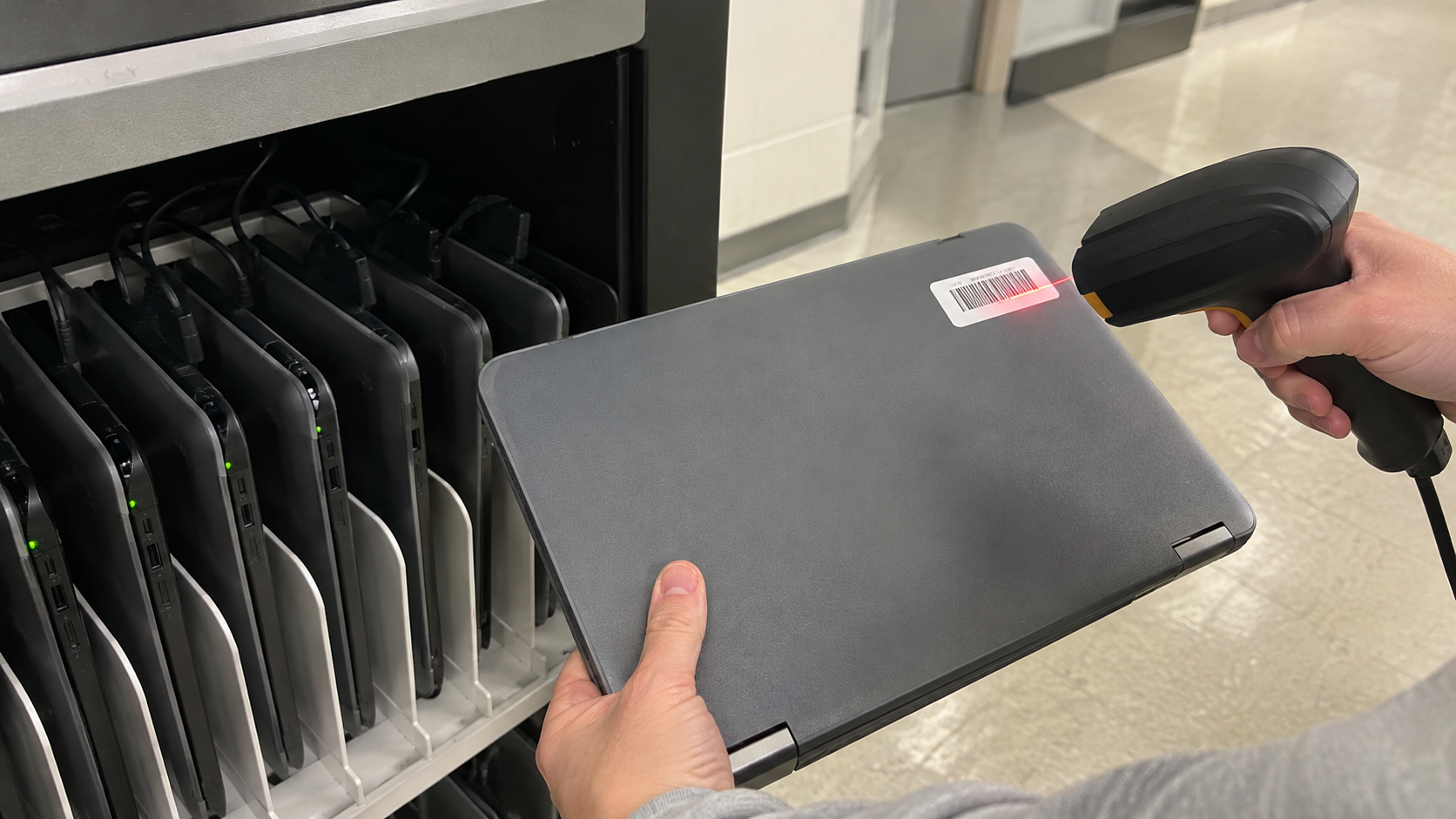
Chromebooks are common in homes, schools and offices, and they eventually need replacing. Before an old Chromebook goes to a recycler, a buyer or a donation program, the data and account connections on it should be removed. This guide explains how to wipe a Chromebook before recycling, based on Google’s own instructions, and what to do if the device belongs to a school or employer.
Why You Should Wipe a Chromebook Before Recycling
Much of a Chromebook’s data lives in the cloud, but not all of it. Google’s help article Reset your Chromebook to factory settings explains that files in the Downloads folder and other information are stored on the Chromebook’s own drive. The U.S. EPA advises deleting all personal information from electronics before donating or recycling them.
What a Chromebook Factory Reset Erases
According to Google, a factory reset, also called a Powerwash:
- erases all user data on the Chromebook’s hard drive, including all files in the Downloads folder
- erases most non-user device information, while preserving a few diagnostic and operational pieces of data
- does not delete files stored on Google Drive or on an external storage device
Step 1: Check Whether the Chromebook Is Managed
Google states that if you use your Chromebook at work or school, you cannot reset it yourself. To wipe the data and re-enroll the device, contact your administrator.
For managed Chromebooks, the administrator controls the reset and enrollment. That is important for schools and businesses retiring Chromebooks in bulk. School Electronics Recycling covers device retirement for districts.
Step 2: Back Up Your Files
Google recommends backing up before you reset:
- sync your information and settings to your Google Account
- save files from the Downloads folder to Google Drive or an external storage device
Step 3: Powerwash the Chromebook
Google lists these steps for a personal Chromebook:
- Sign out of your Chromebook.
- Press and hold Ctrl + Alt + Shift + r.
- Select Restart.
- In the box that appears, select Powerwash, then Continue.
- Follow the steps that appear.
Google notes that the account you sign in with after the reset becomes the owner account. If you are preparing the Chromebook for recycling or a new owner, stop at the welcome screen rather than signing in again.
Step 4: Remove Accessories and External Storage
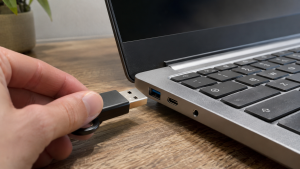
A Powerwash does not touch external storage. Remove any USB drives or memory cards before handing the Chromebook over, and wipe them separately if they hold data. USB Drive Recycling covers flash drives.
What If the Chromebook Will Not Turn On?
A Chromebook that does not power on cannot be Powerwashed, but its internal storage may still hold data. Ask your recycler how data-bearing devices are handled, or consider physical destruction of the storage. How to Recycle a Broken Laptop explains the options.
Retiring Chromebooks in Bulk
Schools and businesses often retire Chromebooks by the cartload. A reliable process includes:
- Inventory each device by serial number and asset tag. IT Asset Tagging explains why.
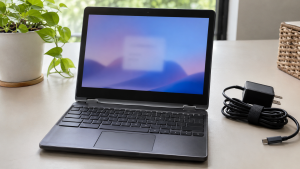
- Have the administrator release or wipe each device according to the management system’s procedures.
- Confirm the reset before devices leave.
- Record the outcome for each serial number.
- Choose reuse, resale or recycling for each device.
NIST’s SP 800-88 Revision 2 notes that for devices that only offer a reset to the factory state, that reset may be the only clear sanitization option available.
How 3W Computer Can Help
3W Computer works with organizations retiring IT equipment from its base in Upland, California. On its website, 3W Computer lists logistics and pickup, detailed inventory reporting, equipment remarketing, data destruction services including a certificate of destruction, and e-waste recycling. Contact 3W Computer to discuss a batch of Chromebooks.
Frequently Asked Questions
How do I wipe a Chromebook before recycling?
Back up your files, sign out, press Ctrl + Alt + Shift + r, select Restart, then choose Powerwash and Continue.
Does Powerwash erase everything on a Chromebook?
Google says it erases all user data on the Chromebook’s drive and most other device information, but not files on Google Drive or external storage.
Can I wipe a school or work Chromebook myself?
No. Google says managed Chromebooks cannot be reset by the user; contact your administrator.
Do I need my password to wipe a Chromebook?
The Powerwash steps start after signing out, from the sign-in screen. Managed devices need administrator action.
What should I do with a Chromebook that will not turn on?
Ask your recycler how data-bearing devices are handled, or arrange destruction of the storage.
Wipe Your Chromebook Before Recycling, Then Pass It On Responsibly
Knowing how to wipe a Chromebook before recycling takes only a few minutes: check whether it is managed, back up, Powerwash, remove external storage, and hand it to a responsible recycler or new owner.
To discuss recycling a batch of Chromebooks, contact 3W Computer.
Sources
- Google Chromebook Help, Reset your Chromebook to factory settings
- U.S. EPA, Electronics Donation and Recycling
- National Institute of Standards and Technology, SP 800-88 Rev. 2: Guidelines for Media Sanitization
Name: Win Win World Recycle LLC
Address: 1226 West 9th Street, Upland, CA 91786
Phone: 908-798-6789