To wipe a computer before recycling, preserve the information you still need, identify its storage devices, and select an erasure process appropriate for the hardware and the sensitivity of the data. Check the result before releasing the equipment. For a company-owned computer, have your IT team approve the method and the records required to close the job.
A household laptop and an office computer containing customer records may need different treatment. A reset feature can be useful for a personal device, but its availability does not establish that it meets your business requirements.
This guide explains how to prepare, where to find the official Windows and Mac instructions, and what to do when a computer cannot be wiped through its operating system.

Before You Erase Anything
Start with ownership and authorization. Confirm that the computer is approved for retirement and that no one still needs the files or applications stored on it. For leased equipment, check the return instructions before making changes.
Make a short checklist for each machine:
- Record the computer’s asset tag, serial number, and assigned owner.
- Identify business records that must be retained.
- Back up required information and check that the backup can be opened.
- Ask IT to identify all installed storage devices.
- Confirm who will perform the erasure and review its outcome.
- Keep equipment awaiting approval separate from equipment ready for handover.
Do not rely on an employee saying that everything important is “probably in the cloud.” Ask them to confirm with the responsible team. Avoid sharing account passwords or recovery keys in a recycling quote request; agree on a secure support process if assistance is needed.
Deleting Files, Formatting, and Resetting Are Different Tasks
Before using a tool, establish what it actually does. The disappearance of a file from a folder is not a useful acceptance test for a business disposal project. Likewise, the words “format,” “reset,” and “secure erase” should not be treated as interchangeable instructions.
Use these questions to clarify the proposed action:
| Proposed action | What to establish first |
|---|---|
| Delete selected files | Is this only housekeeping, or does it meet an approved disposal requirement? |
| Format a drive | Which exact operation and storage device are involved? |
| Reset the operating system | Which settings are selected, and what does the manufacturer say about their limits? |
| Use a sanitization tool | Does it support this hardware and the required outcome? |
| Arrange physical destruction | Which storage media will be destroyed, and how will completion be documented? |
For company equipment, document the approved approach before starting. This prevents a well-intentioned employee from running a reset that leaves the IT team unable to confirm what happened.
How to Wipe a Windows Computer Before Recycling
For a personal Windows 11 PC, the official reset workflow starts at Settings → System → Recovery → Reset PC. Choose Remove everything and enable Clean data in the available settings when preparing the device for recycling. Review the displayed scope carefully before confirming.
The Keep my files option retains personal files and is unsuitable for this purpose. Keep the machine powered and allow the process to finish; interrupting it can cause failure.
Microsoft describes the data-cleaning feature as intended for consumers and says it does not meet government or industry data-erasure standards. A company should therefore have IT assess the required process rather than assuming this reset completes its disposal obligations.
Follow the current official Windows reset instructions for your device. If additional drives are present, ask IT to confirm that every intended device is covered.
Preparing a Mac for Recycling
For supported Macs, Erase All Content and Settings provides a guided preparation process. Apple makes this feature available on Macs with Apple silicon or the Apple T2 Security Chip running macOS Monterey 12 or later.
On macOS Ventura 13 or later, the route is System Settings → General → Transfer or Reset → Erase All Content and Settings. Follow the prompts, including the account-related steps. On other supported versions, the route differs.
If the feature is unavailable, use the alternative steps in the official Mac preparation guide. Do not substitute instructions for a different model or operating-system version.
For a managed business Mac, coordinate the process with IT, including any required release from organizational management. Agree on the sequence before removing a device from systems your team uses to track it.
HDDs and SSDs Need Appropriate Methods
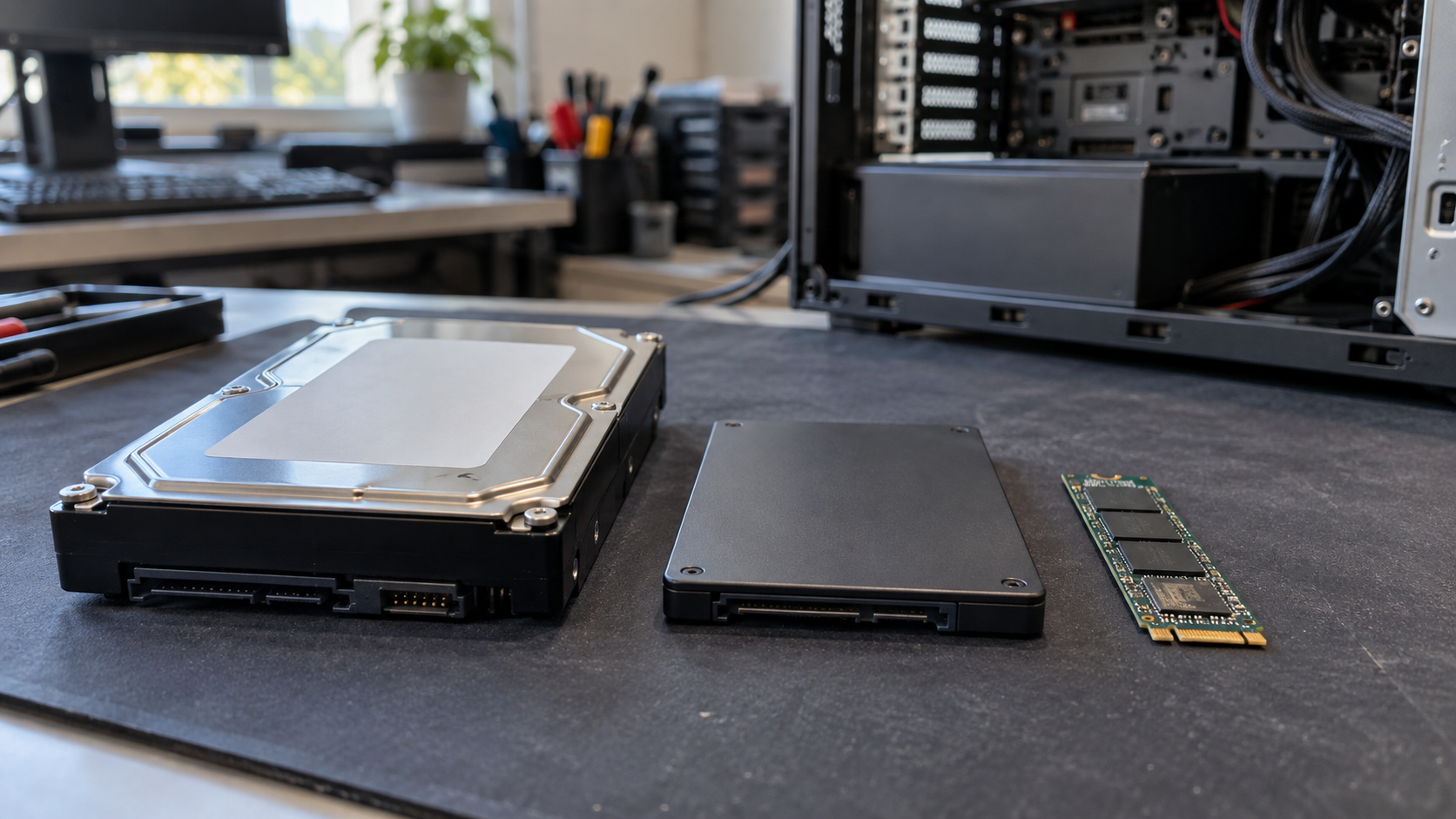
Storage type matters. NIST SP 800-88 Revision 2 explains that ordinary overwriting can be unsuitable for SSDs with overprovisioning because some stored data may remain outside the areas reached by those writes. A procedure used for one drive should not automatically be applied to another.
Cryptographic erase can be suitable under defined conditions, but it depends on encryption and key handling. Turning on encryption immediately before disposal is not, by itself, proof that the full data history has been addressed.
Ask your IT team to select and validate a method for the specific media and risk. The current NIST media sanitization guidance, published in September 2025, supersedes Revision 1 and provides a framework for that decision.
What If the Computer Will Not Turn On?
A failed startup does not establish that the storage is empty. Set the machine aside as unresolved and explain the problem to the person handling the disposal project.
Ask a qualified technician whether the storage can be accessed separately. Some devices allow removal of a storage module; others require a different service approach. Avoid taking apart an unfamiliar machine simply to follow a generic online tutorial.
If erasure cannot be completed and checked, ask about an appropriate destruction option. NIST describes destruction as a sanitization method that makes the media unusable. Confirm that the proposed process is suitable for the actual storage technology, and avoid treating visible damage as proof of completion.
Keep the device under controlled access while a decision is pending. Label its status in the inventory so that it is not accidentally included with equipment already approved for release.
Plan Business Data Handling Before Pickup
Your project needs a clear division of responsibility. Decide whether IT will complete the work internally or whether a provider will receive equipment that still requires processing.
Before handover, ask the provider:
- Which devices and media are included in the proposed scope?
- Where will the work take place, and who will handle transport?
- Which method is proposed for each storage type?
- How are unsuccessful or unsupported devices handled?
- What records will be supplied, and when?
- Who approves additional work if the original plan cannot be completed?
Request a sample report with confidential details removed. Have the person who will close your internal asset records check whether it contains the information they need. A clear sample is more useful than agreeing only to receive “a certificate.”
Keep a Record for Each Device
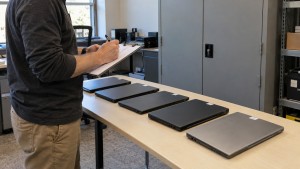
Create a project record that connects the equipment handed over with the work agreed and the final outcome. As a practical checklist, ask for device identifiers, processing dates, the reported method, results, and any exceptions requiring follow-up.
For example, if 20 computers are collected and one cannot be processed as planned, keep that item open in your records. Ask what will happen next and who must authorize it. Do not let a batch-level completion message hide an unresolved device.
Before filing the project as finished, reconcile the final equipment list with your original inventory. Record changes such as a drive retained by IT or a machine removed from the collection at the last minute.
Frequently Asked Questions
Is a factory reset enough before recycling a computer?
It depends on the device, reset implementation, selected options, and your requirements. Consult the manufacturer’s guidance. For business equipment, have IT approve the process and its acceptance criteria before relying on the result.
Do I need to wipe a computer that no longer works?
Treat its data status as unresolved until assessed. Explain the failure to IT or the provider and agree on a suitable next step before handing it over as ready for recycling.
Should I remove the hard drive before recycling?
Only when that fits the agreed plan. Removing a drive leaves you responsible for its handling. Track it separately and confirm who will process it; do not lose the link between the computer and the removed media.
Can I use the same wiping instructions for every office computer?
Do not assume so. Ask IT to group machines by hardware, storage type, and approved process. Record exceptions instead of forcing every device through one workflow.
How long does computer wiping take?
Request an estimate for the actual devices and method. Build in time for checking results and resolving failures. Avoid scheduling collection on the assumption that every machine will finish at the same time.
Does recycling automatically include data handling?
Confirm the scope explicitly. Ask whether processing and documentation are included, who is responsible, and whether there are additional charges. Equipment acceptance alone does not describe the work to be performed.
Discuss Your Retired Computers With 3W Computer
Knowing how to wipe a computer before recycling starts with choosing the right process for the equipment and the information it holds. Preserve required records, obtain approval, check outcomes, and follow up on unresolved devices before closing the project.
Contact 3W Computer to discuss data handling for your retired computers. Share the device types, quantities, known faults, and reporting requirements so you can confirm available options before arranging a handover.
Name: Win Win World Recycle LLC
Address: 1226 West 9th Street, Upland, CA 91786
Phone: 908-798-6789