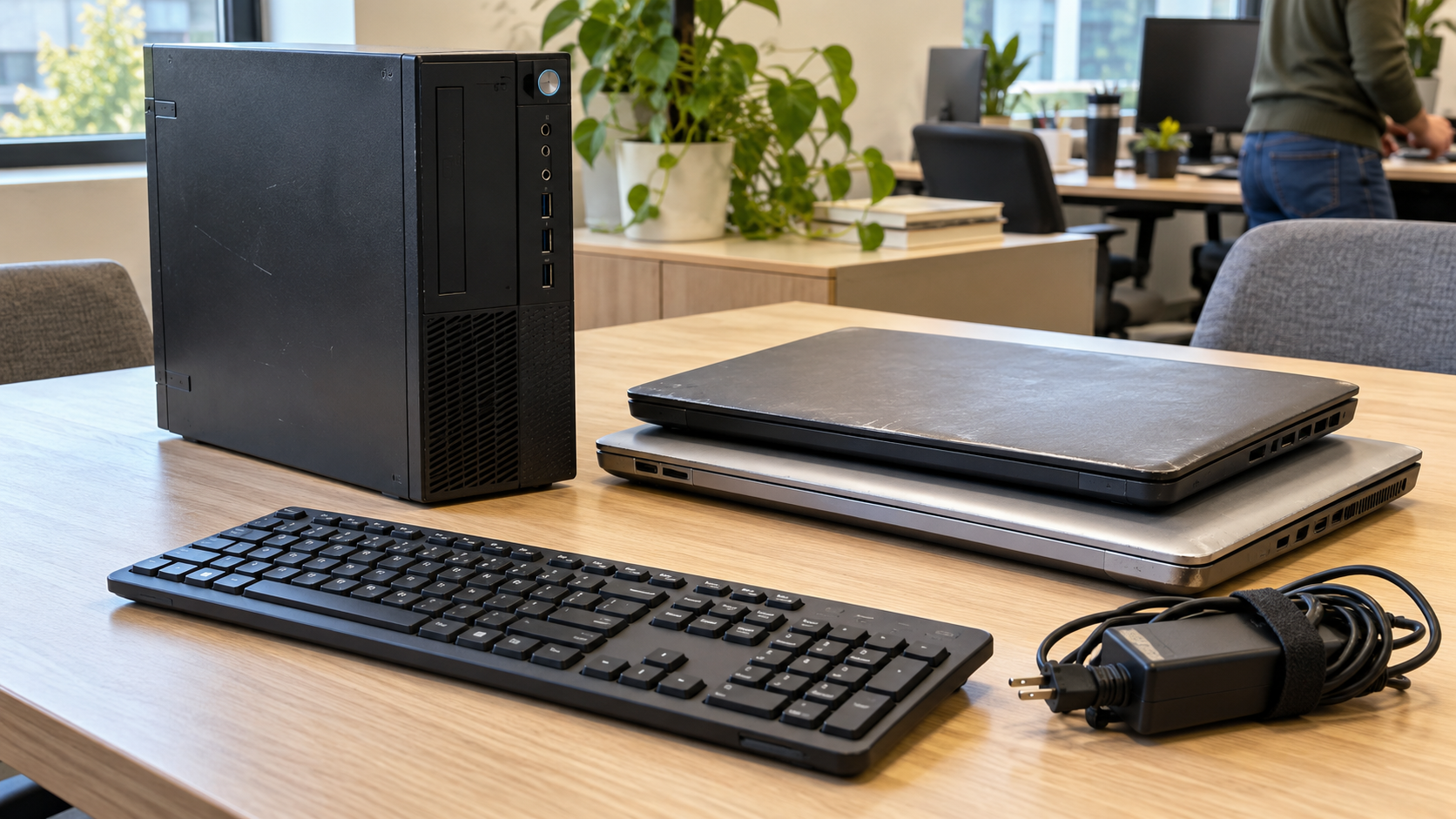
What to Do With an Old Windows 10 PC: Upgrade, Reuse or Recycle?
An older Windows 10 computer does not become broken simply because its operating system reaches the end of normal support. But a machine that still starts needs a practical plan for software support, security and its next owner or task.
If you are deciding what to do with an old Windows 10 PC, begin with three questions: can it move to a supported operating system, does it still meet a useful need, and what preparation is required before it leaves your control?
The answer may be an upgrade, a carefully evaluated new role or retirement. For businesses, make that decision through IT and asset management rather than letting a storage-room cleanout determine which computers stay or go.

What Changed When Windows 10 Support Ended?
Windows 10 Home and Pro reached their published end-of-support date on October 14, 2025. A computer may continue operating after that date, but normal support ending changes the decision about keeping it in service.
There are separate update arrangements and edition-specific lifecycles to check. Identify the installed edition, version and any applicable enrollment before declaring a device unsupported or assuming it remains covered.
App updates, antivirus updates and operating-system security updates are also different things. Seeing one application update does not establish the support status of the whole computer.
For business equipment, ask IT to document the applicable support route and planned transition date. “It still works” describes part of the hardware condition; it is not a complete support assessment.
First, Check Whether the PC Can Run Windows 11
Use the manufacturer’s information and Microsoft’s current Windows 11 requirements to assess the actual computer. Microsoft provides the PC Health Check app to help determine eligibility.
Compatibility involves more than available disk space or the amount of RAM. Processor support, firmware capabilities and other requirements can matter. Do not assume a memory upgrade alone will make an incompatible computer eligible.
If a check identifies a problem, have a qualified person interpret it before spending money on parts. Some situations may involve a supported setting or configuration change; others may require different hardware. Confirm what applies to that model.
Microsoft states that installing Windows 11 on devices that do not meet minimum requirements is unsupported and not recommended. Do not confuse an installation workaround with an approved long-term support plan.
Review Extended Security Updates Separately
Extended Security Updates, or ESU, can provide an additional transition option for eligible equipment. Check the current official terms instead of relying on an older article’s deadline.
As checked on October 22, 2026, Microsoft’s consumer ESU page lists coverage through October 12, 2027 for eligible enrolled devices. It states that the consumer program cannot be used in commercial scenarios and does not include feature improvements or general technical support.
For organizations, Microsoft’s commercial ESU guidance describes a separate program, with eligible enrolled commercial or educational PCs able to receive security updates for up to three years after the applicable Windows 10 end-of-support date. Check prerequisites and licensing for the actual deployment.
Treat this as a transition decision with an owner and review date. An extended update arrangement does not repair failing hardware or establish that every business application remains supported.
Compare the Four Practical Options
| Option | When to assess it | What to verify |
|---|---|---|
| Supported upgrade | The PC meets requirements and still suits its workload | Compatibility, application needs and migration preparation |
| Temporary continued use | An applicable support arrangement fits a defined transition | Eligibility, enrollment, responsibilities and end date |
| Reuse in another role | A supported software environment and useful task are available | Hardware condition, app compatibility and authorization |
| Retirement | Continued use is unsuitable or not practical | Ownership, data handling and the receiving destination |
Compare total effort as well as the immediate price. Troubleshooting, downtime, replacement parts and staff time can change whether keeping a computer makes sense.
Avoid a blanket decision based on age. Two machines purchased together may differ in configuration, condition and their ability to meet the next task.
When an Upgrade Is Worth Evaluating

A supported upgrade can be a sensible option when the computer remains reliable and meets the intended workload. Assess the whole setup, including essential applications, peripherals and management tools.
Before making changes, preserve the information you need and confirm the migration plan. For business computers, use the organization’s approved process rather than allowing each employee to make independent operating-system changes.
If repairs are also needed, compare the combined effort with replacement and retirement. Spending money to resolve one symptom may leave other problems that still make the computer unsuitable.
Do not upgrade solely to make a retired machine look more attractive for resale. Describe its supported configuration and known condition accurately, and confirm that the next recipient actually needs it.
Can You Give the Computer a Different Job?
Possibly, if a suitable supported software environment is available and the machine meets that task’s requirements. An older computer might serve a lighter workload, but a smaller workload does not automatically resolve software support or security concerns.
An alternative operating system is an option to evaluate, not a universal recommendation. Check hardware compatibility, application availability, update support, user needs and any licensing or organizational restrictions before changing platforms.
For a business, involve IT before redeploying a PC as a shared terminal, kiosk or spare. A new role can introduce different account, network and management requirements.
Keep a retained spare identifiable. Record its purpose, supported configuration and review date. A shelf full of unlabeled computers is difficult to use when someone needs a reliable replacement quickly.
Selling or Donating a Windows 10 Computer
Confirm that you own the device and have authority to transfer it. Leased equipment, employer-owned devices and machines awaiting internal approval should not enter a personal resale or donation process.
Be transparent about the operating system, upgrade eligibility and known faults. Do not advertise a computer as Windows 11 compatible unless that has been established for its configuration.
Ask a donation recipient whether it accepts the model and software situation. A working device may still fall outside its requirements. Include compatible accessories when requested, but do not assume every recipient wants a complete mixed box of equipment.
Complete the agreed data preparation before transfer. A familiar recipient still becomes a new party with access to the equipment, so a handoff to a friend is not a reason to skip the process.
Prepare Data Before Recycling or Transfer
Decide what information must be preserved, then decide how the storage will be handled. Backup, account changes and media sanitization are related tasks, but they serve different purposes.
For a personal device, use current manufacturer guidance and verify that the intended preparation completed. For business equipment, have IT select an appropriate process for the storage media and the sensitivity of the information.
NIST SP 800-88 Revision 2 provides guidance on establishing a media sanitization program with suitable techniques and controls. A reference to that guidance should lead to specific questions about methods, verification and exceptions, not an assumption that every reset or overwrite provides the same result.
If the computer will not start, do not assume its drive is empty. Identify the unit as unresolved and agree on a suitable handling route before releasing it.
Do not break a laptop or drive yourself as a substitute for an agreed disposition process. Ask what evidence is available if you need records connected to specific assets.
Business Checklist for Retiring Multiple PCs

A Windows refresh can leave computers spread across desks, cabinets and remote offices. Give the retirement work an owner so equipment does not disappear from the inventory between replacement and collection.
Record:
- Model, asset identifier and quantity.
- Ownership and approval to retire.
- Upgrade assessment or support decision where relevant.
- Condition and required accessories.
- Data-handling responsibility and status.
- Planned destination and required records.
Separate approved equipment from active devices and items awaiting review. Do not remove an operational computer because it resembles the models being retired.
For collection planning, identify floor levels, elevator access, loading restrictions and whether staff will consolidate the equipment. Share photos that show the load without exposing private screens, passwords or sensitive paperwork.
After handoff, reconcile the results with your records. Marking a computer “retired” is different from documenting that it was transferred or processed under the agreed arrangement.
Where Should You Recycle an Old PC?
Look for an electronics receiving program that accepts your equipment and customer type. Confirm whether the arrangement covers computers, monitors, batteries and accessories, since a mixed load may have separate conditions.
Ask whether suitable equipment may be evaluated for reuse and what happens to devices that cannot be reused. Clarify your data requirements before discussing collection as a completed plan.
Businesses can contact 3W Computer with an inventory, condition summary and location to discuss available arrangements. Confirm acceptance, collection eligibility, preparation, documentation and any charges before scheduling.
Do not assume an advertised household drop-off offer applies to a commercial load or includes additional services. Written confirmation helps your team understand exactly what is being arranged.
Frequently Asked Questions
Do I have to recycle a computer because it runs Windows 10?
No. Assess a supported upgrade, an applicable transition arrangement or another suitable use before deciding to retire it. Software lifecycle and physical condition are separate considerations.
Can adding RAM make an old PC Windows 11 compatible?
Not necessarily. Eligibility includes requirements beyond memory. Check the actual device rather than buying an upgrade on that assumption.
Can a business use consumer ESU?
Microsoft’s consumer program excludes commercial scenarios. Organizations should review the separate commercial guidance and their actual device and licensing requirements.
Should I donate a PC that cannot upgrade to Windows 11?
Ask the recipient first and disclose the limitation. Donation is appropriate only when the recipient accepts the device and has a suitable plan for it.
Does a nonworking computer still need a data decision?
Yes. Failure to start is not proof that stored information has been removed. Keep it under control until an appropriate disposition route is agreed.
What should I include when requesting business recycling arrangements?
Send equipment types, approximate quantities, condition, location, access details and required data handling or records. Identify unusual items and ask for the full scope and charges.
Choose a Supported Next Step
Deciding what to do with an old Windows 10 PC starts with the actual machine and its intended use. Check upgrade eligibility, review applicable support options and compare the effort of continued use with retirement.
If retirement is the right choice, contact 3W Computer with your equipment inventory and location to discuss acceptance and available arrangements. Confirm data preparation, collection requirements and costs before the handoff.
Name: Win Win World Recycle LLC
Address: 1226 West 9th Street, Upland, CA 91786
Phone: 908-798-6789